Connect an MCP Server
Connect the MCP servers your agents use so the gateway can stand in front of them. You paste the server URL, the gateway detects how it authenticates, and you import the tools your MCP routes will publish.
Before You Start
The gateway speaks one transport to MCP servers: Streamable HTTP (MCP 2025-03-26 and later). It sends JSON-RPC over POST and accepts a JSON or SSE-framed reply.
Servers that only offer the legacy two-endpoint HTTP+SSE transport (GET /sse plus POST /messages), or stdio, cannot be connected.
If your organization restricts which hosts can be connected, the server's host must be on the Approved MCP servers list in Settings.
1. Add the Server
- Open AI runtime → Tools and click Connect MCP Server.
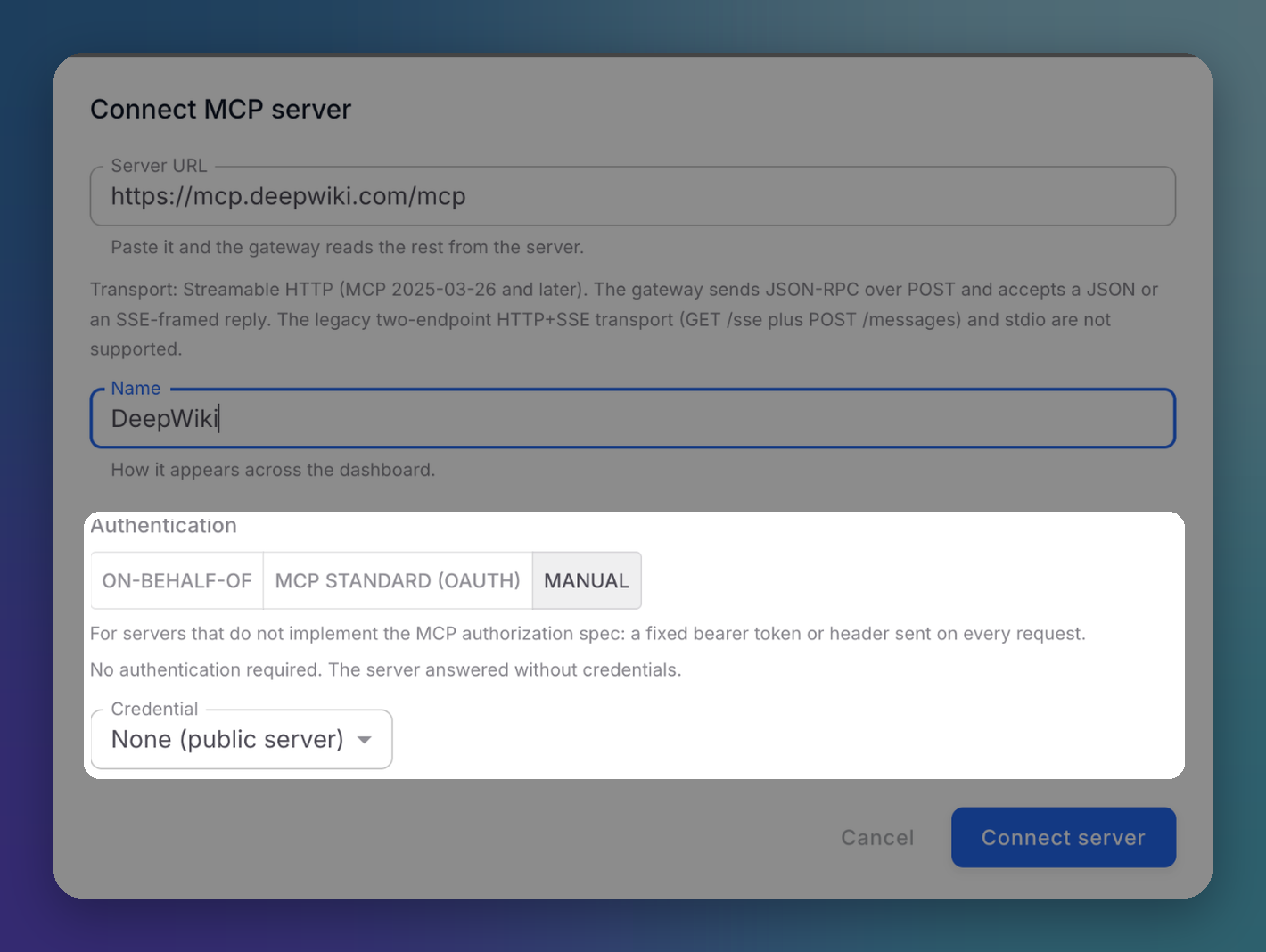
- Paste the Server URL. The gateway probes the server and reads how it authenticates.
- Enter a Name, as it will appear across the console.
- Check the Authentication mode the gateway selected, and fill in the credentials it asks for.
- Click Connect server.
 Click to expand
The gateway selects the authentication mode from what the server answers. In the example, the server answered without credentials, so Manual with None (public server) is selected. You can change the mode; once you pick one yourself, detection no longer changes it.
| Mode | Use it when |
|---|---|
| OAuth sign in | You sign in with the server in a browser popup. The gateway keeps the grant and refreshes tokens on its own |
| Per-user OAuth | Each person signs in with the server themselves, from Connections. The gateway keeps one grant per person and never shares them |
| On-behalf-of | The server acts as the person calling, and nobody links an account. The caller's identity token is exchanged for one the server accepts |
| MCP standard (OAuth) | The server implements the MCP authorization spec. The gateway discovers its token endpoint and authenticates with your client credentials |
| Manual | The server does not implement the MCP authorization spec. A fixed bearer token or header is sent on every request, or nothing for a public server |
OAuth sign in and Per-user OAuth are offered when the server supports interactive sign-in. Per-user OAuth and On-behalf-of need the identity provider enabled in Settings. See MCP Authentication for each mode in detail.
Servers hosted on AWS
AWS-hosted MCP servers (such as AgentCore Gateway) publish no OAuth metadata, so the gateway cannot discover their token endpoint. For an amazonaws.com host, Token URL is required: enter your identity provider's token endpoint, for example your Cognito user pool's.
2. Run Discovery and Import Tools
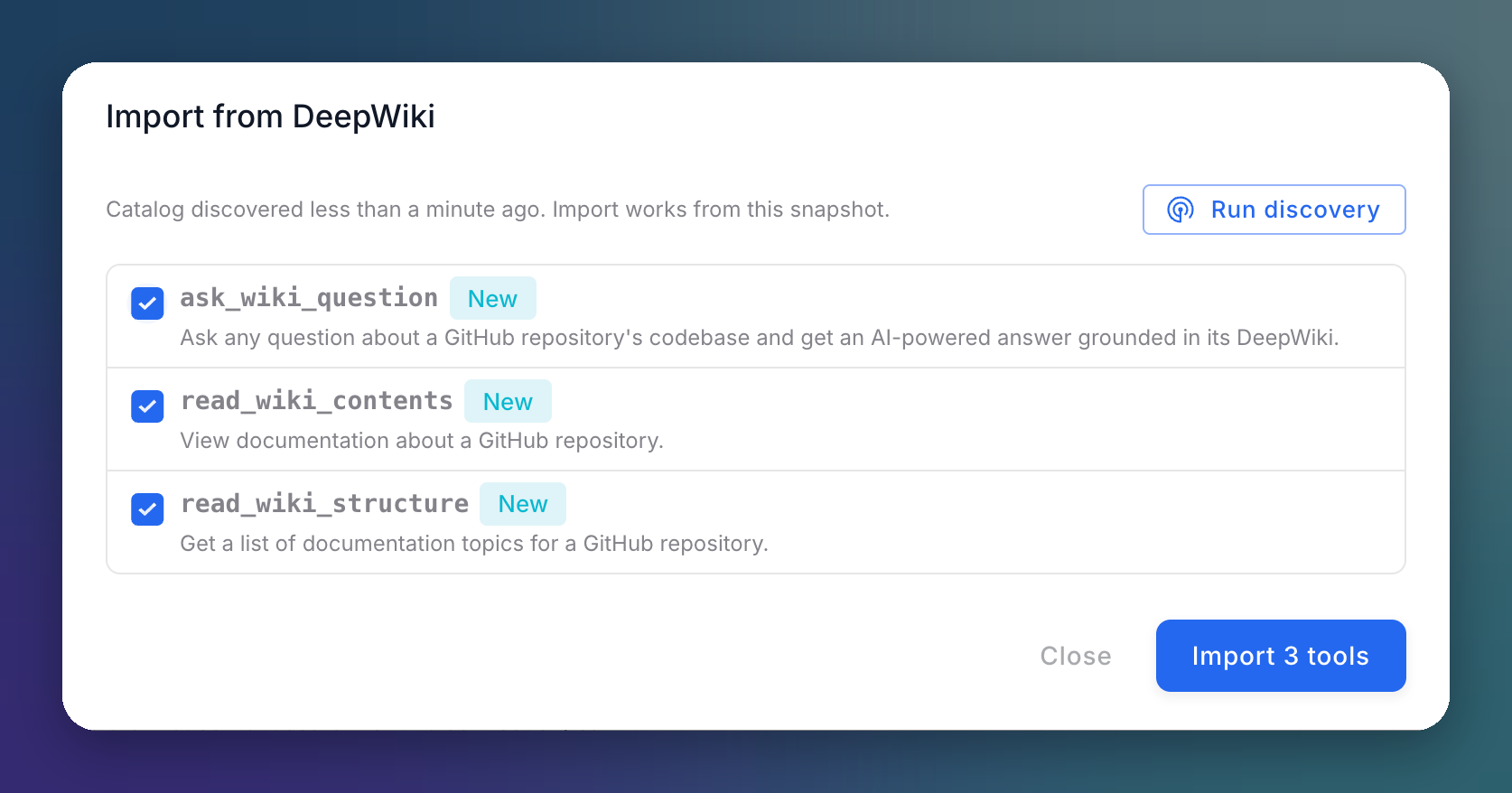
A newly connected server shows Not discovered. In the Connected MCP servers list, click the import icon on its row and then Run discovery. The gateway fetches the server's catalog.
 Click to expand
Check the tools you want and click Import. Imported tools join the Tools inventory, and you can publish them on any MCP route.
Import works from the catalog snapshot shown at the top of the dialog. Run discovery again to refresh it.
3. Publish the Tools
Create or edit an MCP route and check the imported tools under Published tools. See Create an MCP Route.
Server States
The Connected MCP servers list shows each server's state:
| State | Meaning |
|---|---|
| Connected | The gateway can reach the server. The row shows how many tools are in its catalog and how many you imported |
| Not discovered | Connected, but its catalog has not been read yet. Run discovery |
| Needs authorization | The server requires an OAuth sign-in before discovery. Click Authorize on the row |
| Per-user | Each person links their own account. The row shows how many people have linked |
Each row has buttons to run discovery, import tools, edit the server and delete it.
Editing OAuth credentials
An OAuth credential is saved as a whole. When you edit any of its fields, including Token URL or scope, fill in the client ID and secret again, even if they did not change.
Next Steps
Tools
Manage the tool inventory and schema drift
MCP Authentication
All authentication modes in detail