AI Runtime
ByteHide AI Runtime inspects every request between your application and the language models it calls, and between your agents and the tools they use. It blocks attacks, masks sensitive data and records the full verdict of every check, before anything reaches the model or the tool.
Limited access
AI Runtime is available to select customers. Contact sales to request access. Organizations without access are redirected to the dashboard when they open AI Runtime in the console.
What AI Runtime Protects
AI Runtime sits in the path of your AI traffic and applies the detectors of a policy to it. It covers two kinds of traffic:
| Traffic | What it inspects | Typical threats |
|---|---|---|
| LLM prompts and responses | What end users send to a model and what the model answers | Prompt injection and jailbreaks (direct and indirect, such as poisoned RAG content), toxic language, off-topic requests, PII and secrets leaving in prompts or responses |
| Agents, tools and MCP | Tool definitions, the tool calls a model emits and the results tools return | Tool poisoning, calls to tools the agent should not use, SQL, shell, file path and network (SSRF) abuse, injection hidden in tool results, runaway tool loops |
Every inspected request produces an incidence: the verdict (Allowed, Blocked, Masked or Flagged), which detectors fired and why, the route and policy involved, and who sent it.
Two Ways to Connect
AI Runtime works in two modes. Both use the same policies, and their traffic lands in the same Incidences screen.
| Mode | How it works | Use it when |
|---|---|---|
| Gateway mode | Your application points its LLM SDK or MCP client at a ByteHide route URL. The gateway inspects the request, forwards it to the provider or MCP server, and inspects the response. | You want protection without changing application code, or you need to front a third-party MCP server |
| In-app mode | The ByteHide App runtime SDK runs inside your application and validates LLM traffic in-process. Enabling AI Security on a App runtime project creates its route in AI Runtime automatically. | Your application already uses ByteHide App runtime, or traffic must keep going straight to the provider |
See Gateway Mode and In-app Mode for setup.
Organization Scope
AI Runtime is configured per organization, not per project. Routes, policies, integrations and consumers are shared across all projects in the organization, which is why the console marks these screens as Shared across projects.
Projects come into play in two places:
- In-app mode: each App runtime project that enables AI Security gets its own route in AI Runtime.
- Agentic Runtime: the agent installed on developer devices registers with a project token.
Building Blocks
| Concept | What it is |
|---|---|
| Integration | A connection to a model provider (OpenAI, Anthropic, Azure OpenAI, AWS Bedrock, Google Vertex AI and others). Credentials are stored encrypted and never shown again. |
| Policy | A reusable set of detectors. A User-Facing policy inspects user-to-model traffic; an Agent-to-Tool policy inspects agent and MCP tool traffic. |
| Route | A URL your clients call. Each route forwards to a target (an integration or MCP tools) and applies one policy. |
| Consumer | A credential issued to one client, scoped to the routes you grant it. |
| Tool | An MCP tool, either imported from an MCP server you connect or backed by your own endpoint. |
A route without a policy is unprotected
The gateway starts from an all-off configuration: the policy is the only thing that turns detectors on. A route with no policy forwards traffic without inspecting it, and the console marks it as Unprotected.
The Console
AI Runtime lives under AI runtime in the ByteHide console. The sidebar groups its screens by what you do with them:
| Group | Screens | Purpose |
|---|---|---|
| — | Overview, Analytics | Gateway status, traffic snapshot and quickstart |
| Traffic | Incidences, Attackers | Investigate every inspected request and the origins behind attacks |
| Configuration | Routes, Policies, Integrations, Tools, Connections, Consumers, Firewall | Define what is protected and how |
| Automation | Playbooks, Alerts | Act on incidence patterns and notify your team |
| Administration | Audit log, Settings | Change history, gateway key and identity provider |
Screens marked MCP in the sidebar (Tools, Connections) only apply to MCP traffic.
Overview Screen
The Overview is the first screen you see when you open AI Runtime.
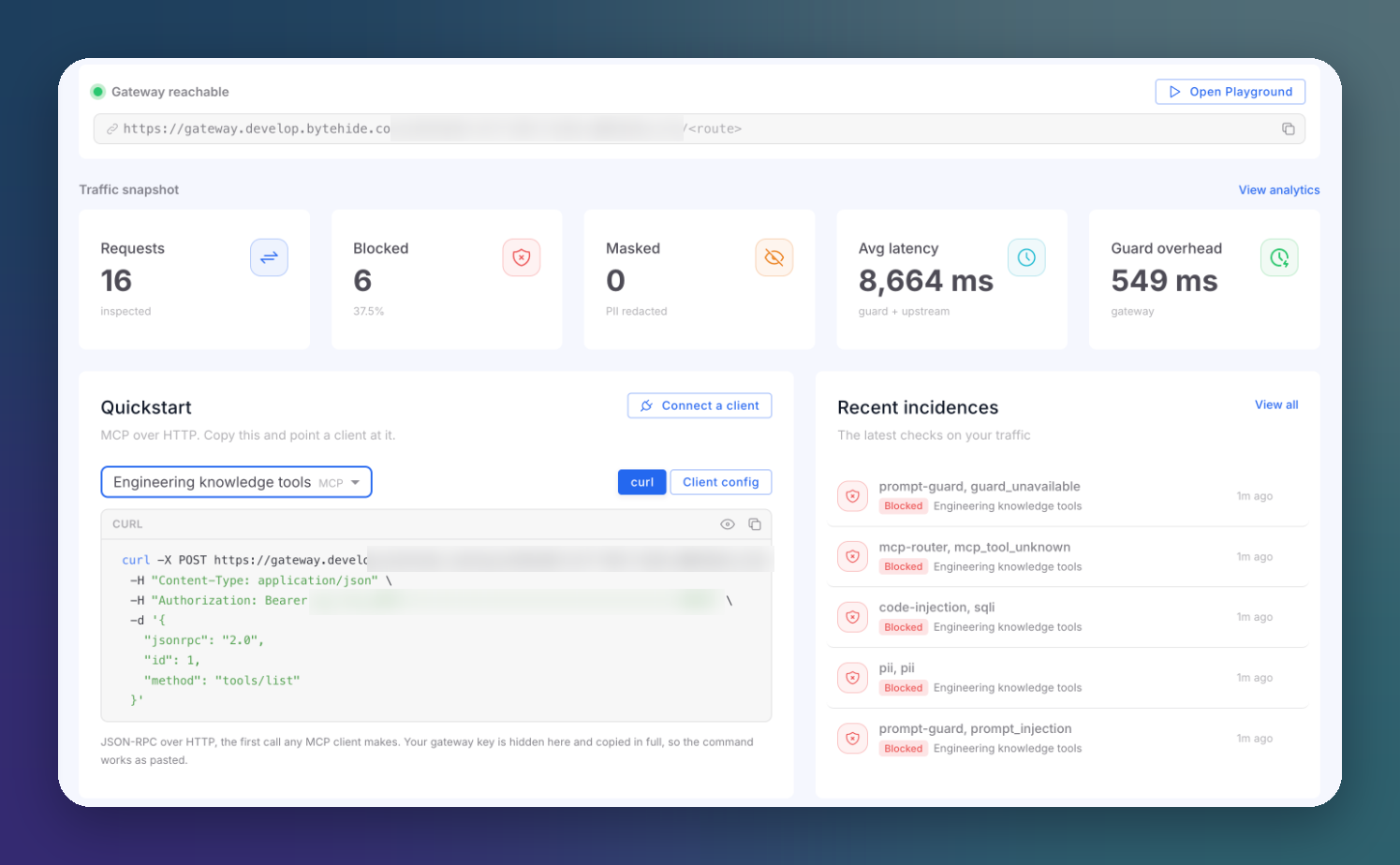 Click to expand
Gateway Status
The top card shows whether the gateway is reachable and your organization's base URL. Every route you create is served under this URL.
Traffic Snapshot
| Card | Description |
|---|---|
| Requests | Requests inspected in the current window |
| Blocked | Requests blocked, with their percentage of all requests |
| Masked | Requests where PII or secrets were redacted |
| Avg latency | Guard plus upstream time, in milliseconds |
| Guard overhead | Time spent in the gateway itself, in milliseconds |
To investigate a number, open Incidences with the equivalent filter. The Overview does not filter.
Quickstart
A ready-to-paste curl command or client configuration for one of your routes. Pick the route in the selector; for MCP routes the command calls tools/list, the first request any MCP client makes. Your gateway key is hidden on screen but copied in full.
Recent Incidences
The latest checks on your traffic, with the detectors that fired and the route. View all opens Incidences.
Next Steps
Quickstart
Protect your first LLM route in a few minutes
Policies
Choose which detectors run on your traffic
MCP Protection
Put a policy in front of the MCP servers your agents use
Incidences
Investigate every request the gateway inspected