Triage & Feedback
Every incidence can be triaged, discussed and exported, and every detection can be corrected. These actions live at the bottom of the incidence detail drawer.
Detection Feedback
Detection feedback tells AI Runtime whether the prompt-injection detector got it right, and your reports are used to retrain it. It appears on incidences with a prompt-injection detection.
| Action | Use it when |
|---|---|
| Report false positive | The detector fired on legitimate traffic |
| Report false negative | The detector missed something it should have caught |
Add a Note explaining why, then click the report button.
Feedback is not triage
Detection feedback improves the detector. It does not change the incidence's triage status. To close an incidence as a false positive for your team, set its triage status as well.
Triage
Expand Triage in the drawer to manage the incidence.
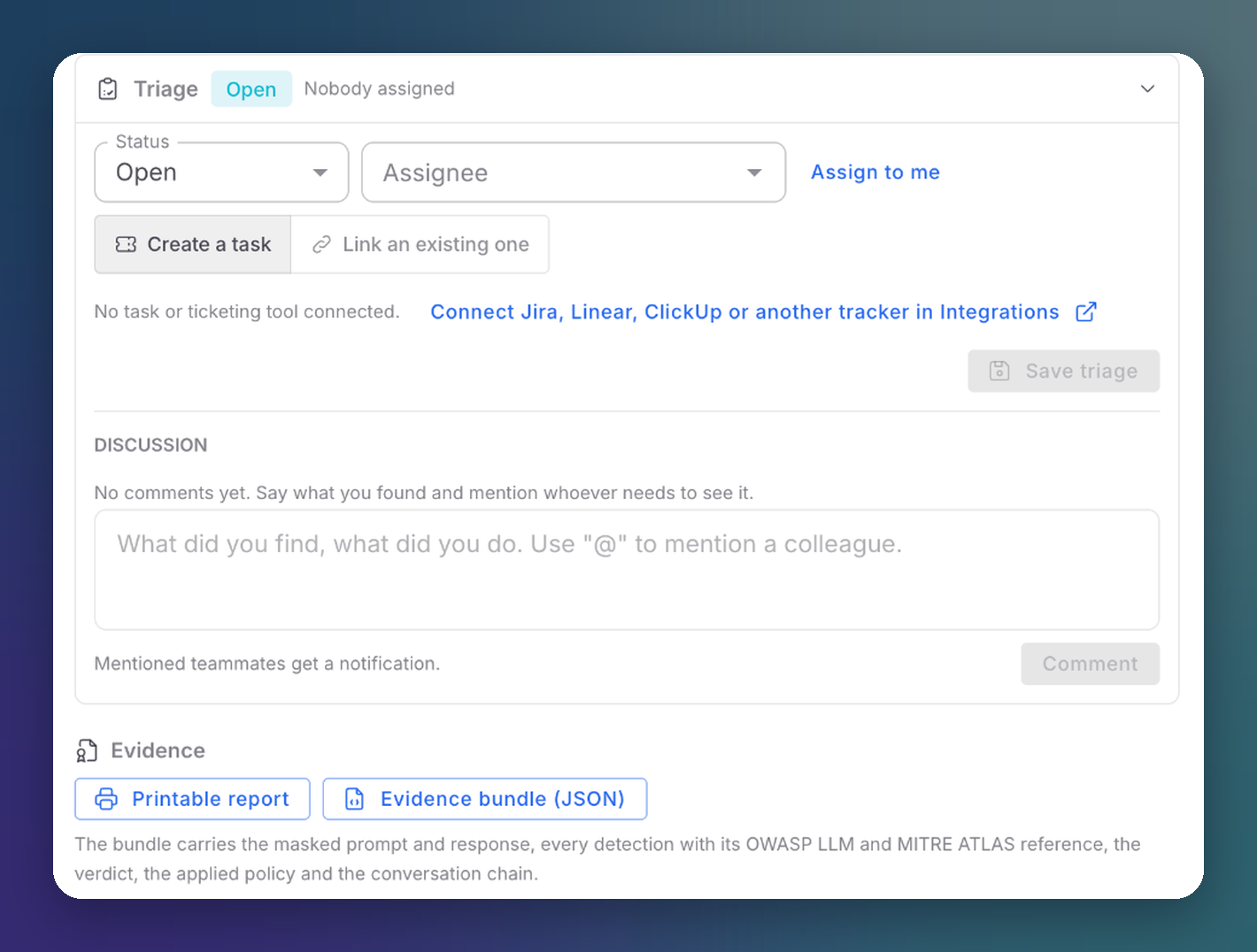 Click to expand
Status
| Status | Meaning |
|---|---|
| Open | New, nobody has looked at it yet |
| Investigating | Someone is working on it |
| Resolved | Handled |
| False positive | Legitimate traffic, closed |
| Ignored | Closed without action |
Resolved, False positive and Ignored are closed states. The Needs attention preset in Incidences hides them.
Assignee
Pick a member in Assignee, or click Assign to me. Filter Incidences by assignee, or by unassigned, to share the workload.
Tasks
Track the follow-up in your issue tracker:
- Create a task opens a new ticket for the incidence.
- Link an existing one attaches a ticket you already have.
Both need a task or ticketing tool connected in your organization's Integrations: Jira, Linear, ClickUp or another tracker. Linked tickets appear next to the incidence in the Incidences table.
Click Save triage to apply the changes.
Triage in Bulk
Select several incidences in the Incidences table and set their triage status at once. See Bulk Actions.
Discussion
Leave comments on the incidence: what you found and what you did. Mention a colleague with @ and they get a notification.
Evidence
Export the incidence for an audit, a customer or an incident report:
| Export | Contents |
|---|---|
| Printable report | A formatted report of the incidence |
| Evidence bundle (JSON) | The masked prompt and response, every detection with its OWASP LLM and MITRE ATLAS reference, the verdict, the applied policy and the conversation chain |
Block the Origin
If an incidence comes from an origin you want to stop outright, add it to the Firewall. The Attackers screen shows which origins accumulate the most risk.