Firewall
The firewall is the first barrier, before any detector. Traffic that matches a firewall entry is refused outright, so it never reaches a detector, a model or a tool. Changes apply within seconds.
Firewall Screen
Open AI runtime → Firewall.
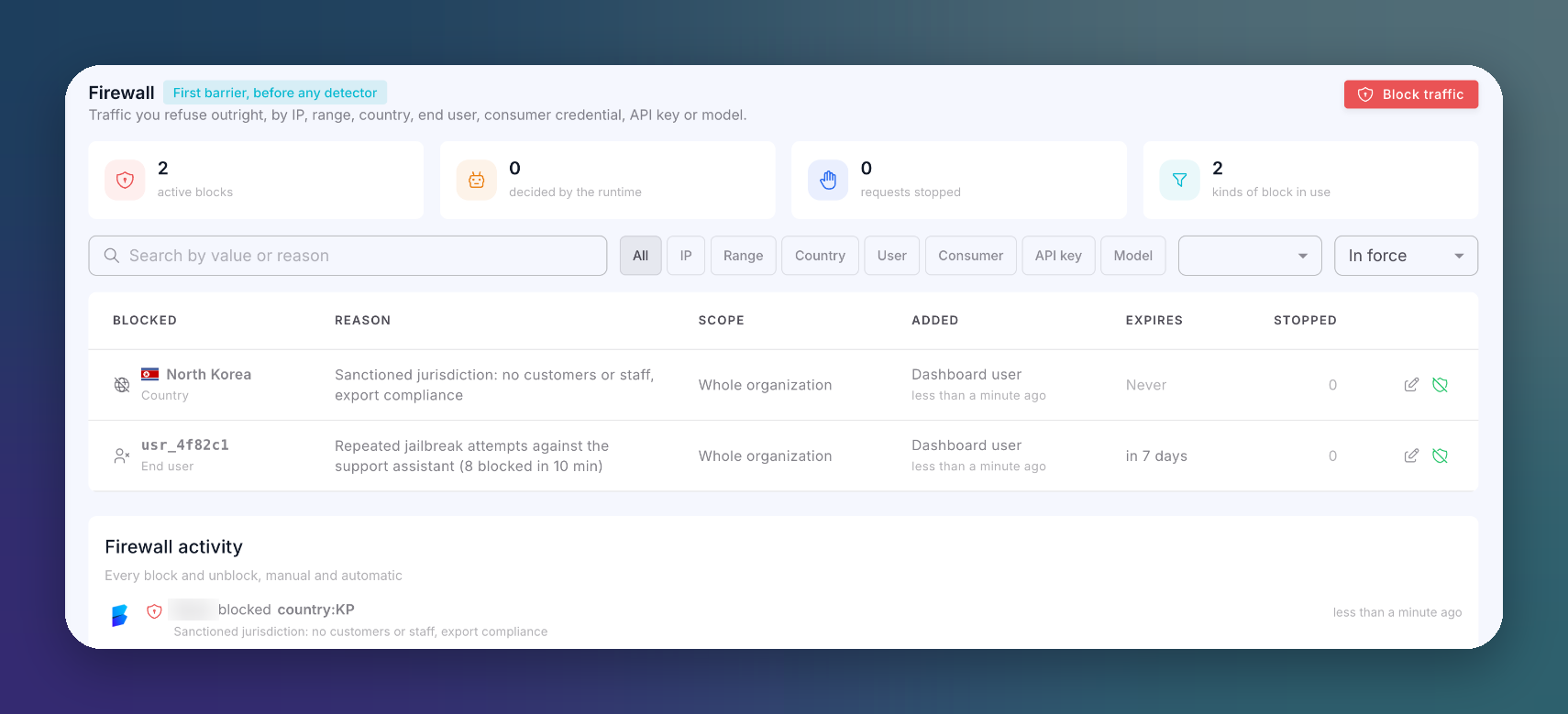 Click to expand
Summary
| Card | Description |
|---|---|
| Active blocks | Entries currently in force |
| Decided by the runtime | Entries the gateway added on its own, from behavior |
| Requests stopped | Requests the firewall refused |
| Kinds of block in use | How many block types are in use |
Filter the list by kind (IP, Range, Country, User, Consumer, API key, Model), search by value or reason, and choose whether to show entries in force or expired ones.
Blocklist
| Column | Description |
|---|---|
| Blocked | The blocked value and its kind |
| Reason | Why it was blocked. Automatic bans show the reason the gateway recorded |
| Scope | The whole organization, or one route |
| Added | When, and by what: a person, a playbook or the runtime |
| Expires | When the block lifts on its own. Never for permanent blocks |
| Stopped | How many requests this entry has refused |
Each entry can be edited or lifted with Unblock, after a confirmation.
Firewall Activity
Every block and unblock, manual and automatic, with who made it and the reason.
Block Traffic
Click Block traffic.
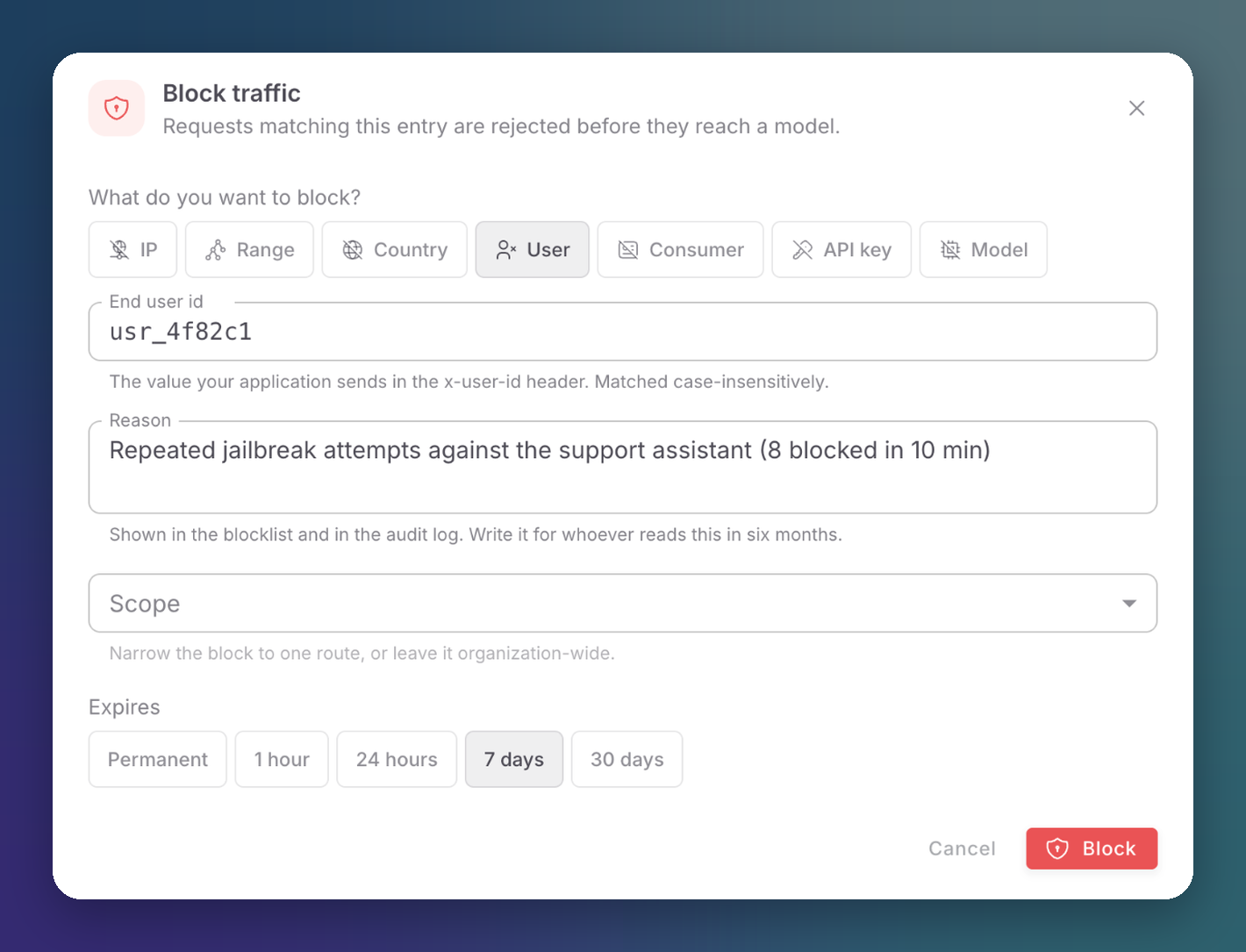 Click to expand
Choose what to block:
Kind Value IP An address. It matches the address that opened the connection, or the end-user address your backend forwards in x-user-ipRange A CIDR range Country A country, resolved from the geolocation header your edge adds to the request User The end user ID your application sends in x-user-id. Matched case-insensitivelyConsumer A consumer credential API key A gateway key Model A model name Write the Reason. It is shown in the blocklist and the Audit log: write it for whoever reads it in six months.
Optionally narrow the Scope to one route, or leave it organization-wide.
Choose when it Expires: Permanent, 1 hour, 24 hours, 7 days or 30 days.
Click Block.
A firewall 403 is not a detection
A request refused by the firewall never reached any detector, so it is not a policy block. Look for it in the firewall's Stopped count, not in a detector's findings.
Automatic Bans
The runtime adds entries on its own when an origin's behavior crosses a risk threshold. They appear here marked as automatic, count in Decided by the runtime, and show in the Containment column of Attackers. Lift them like any other entry.
Playbooks can also add and lift blocks, for example to quarantine an end user for an hour and release them automatically.