In-app Mode
In-app mode protects the LLM calls your application makes from inside the process. The ByteHide App runtime SDK intercepts the calls your code sends to the model and the answers it gets back, and AI Runtime judges them with the policy you choose. Your application keeps calling its provider directly.
Limited access
AI Runtime is available to select customers. Contact sales to request access. AI Security must also be included in your App runtime plan; otherwise the console shows an upgrade prompt when you add the rule.
When to Use In-app Mode
| Use in-app mode when | Use gateway mode when |
|---|---|
| Your application already runs the ByteHide App runtime SDK | You do not want to add an SDK to the application |
| Traffic must keep going straight from your application to the provider | You want the provider key to live in ByteHide instead of your application |
| You want AI protection next to App runtime's other runtime protections (SQL injection, XSS, SSRF...) | You need to protect a third-party MCP server or a client you do not control |
Both modes use the same policies, and their incidences land in the same Incidences screen.
What It Protects
| Area | Coverage |
|---|---|
| LLM prompts and responses | Prompt injection and jailbreaks, direct and indirect (poisoned RAG content, retrieved documents). Prompt and response moderation by topic, toxic and abusive language. Data loss prevention: PII, secrets and API keys in prompts and responses, plus honeytokens to catch exfiltration |
| Agents, tools and MCP | Prompt injection planted in agent and MCP tool definitions (tool poisoning). Tool allowlists, validation of the tool calls the model emits, and scanning of tool results before they reach the model again. Caps on runaway tool loops, and guards for SQL, shell, network egress (SSRF), file paths and infrastructure operations |
| Your stack | Direct LLM SDK calls: OpenAI, Anthropic, Google Gemini, Azure OpenAI, AWS Bedrock, Mistral and others. Managed agents: Amazon Bedrock Agent (InvokeAgent), Azure AI Foundry and Vertex AI Agent Engine. Agent frameworks and MCP servers, by intercepting their tool and model calls |
How It Works
- You install the App runtime SDK in your application and initialize it with the project token.
- In the App runtime project, you add the AI Security rule.
- Enabling AI Security creates an in-process route for the project in AI Runtime. Its policy is the one you choose in the rule.
- At runtime the SDK intercepts your application's model calls, input and output, and AI Runtime returns a verdict for each one.
- Every check appears in AI Runtime Incidences, linked to the project's route, with the full per-detector detail.
Without a policy, nothing is enforced
The gateway starts with every detector off, and the policy is what turns them on. If the AI Security rule has no policy, the project's LLM calls are recorded, but nothing is blocked or masked. Choose a policy to protect the project, and set its detectors to Observe if you want detection without enforcement.
The in-process route is managed by App runtime and does not appear in the Routes list.
Enable AI Security
- Open the App runtime project in the console (App runtime) and go to Rules.
- Click Add Rule.
- Pick AI Security, marked ByteHide AI Runtime.
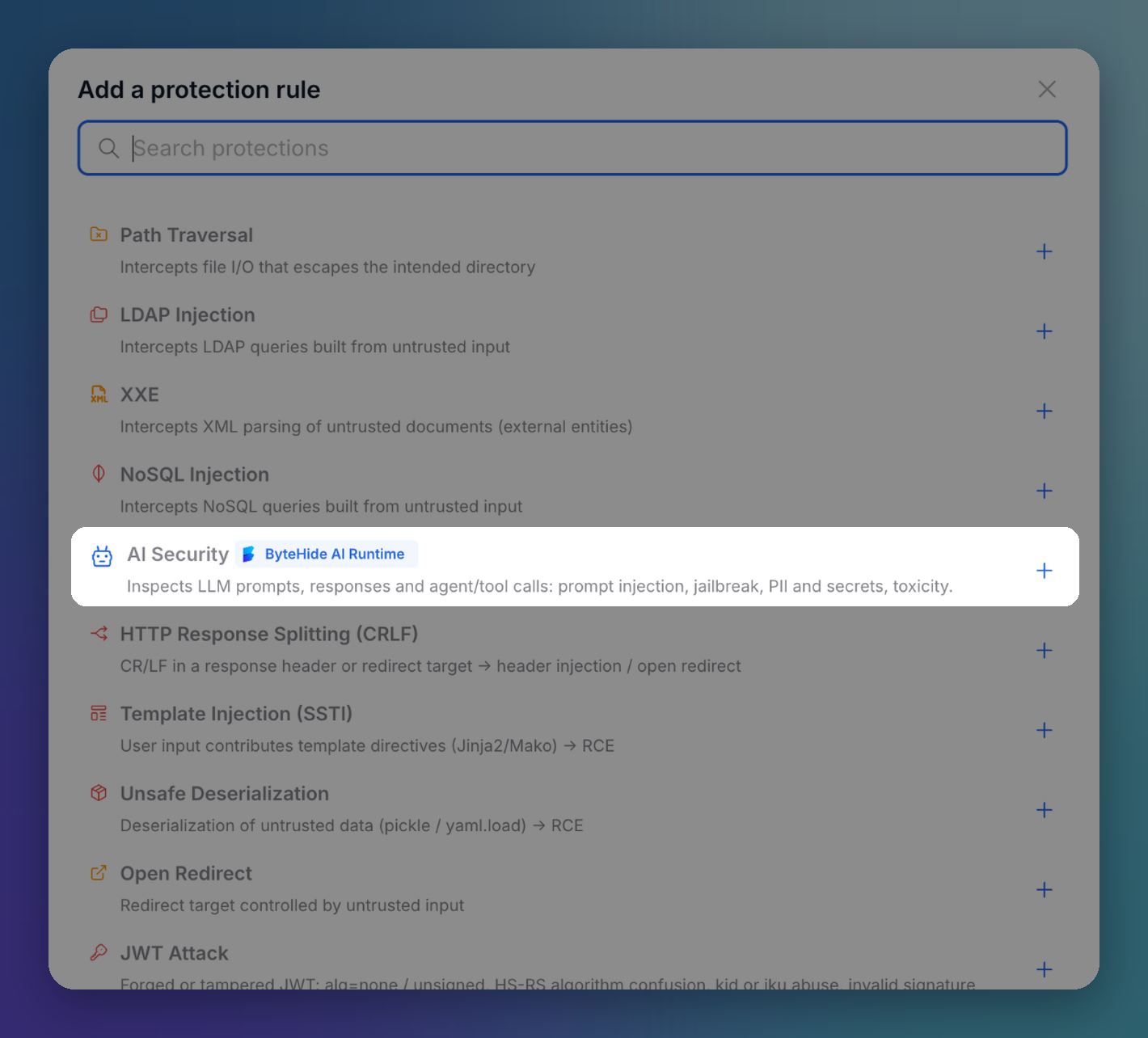 Click to expand
- On the AI Security rule, choose the AI Runtime policy that governs this project's LLM traffic. Instead of App runtime's usual Log or Block actions, the policy decides what happens to each call.
- Use the edit button next to the selector to open the policy in AI Runtime.
- Use the create button to make a new policy there. Both open AI Runtime in a new tab.
See Policies for the detectors you can enable.
Install the SDK
Follow the guide for your language:
.NET
ASP.NET Core and .NET applications
Python
Flask and Python applications
JavaScript
Express and Node.js applications