Alerts
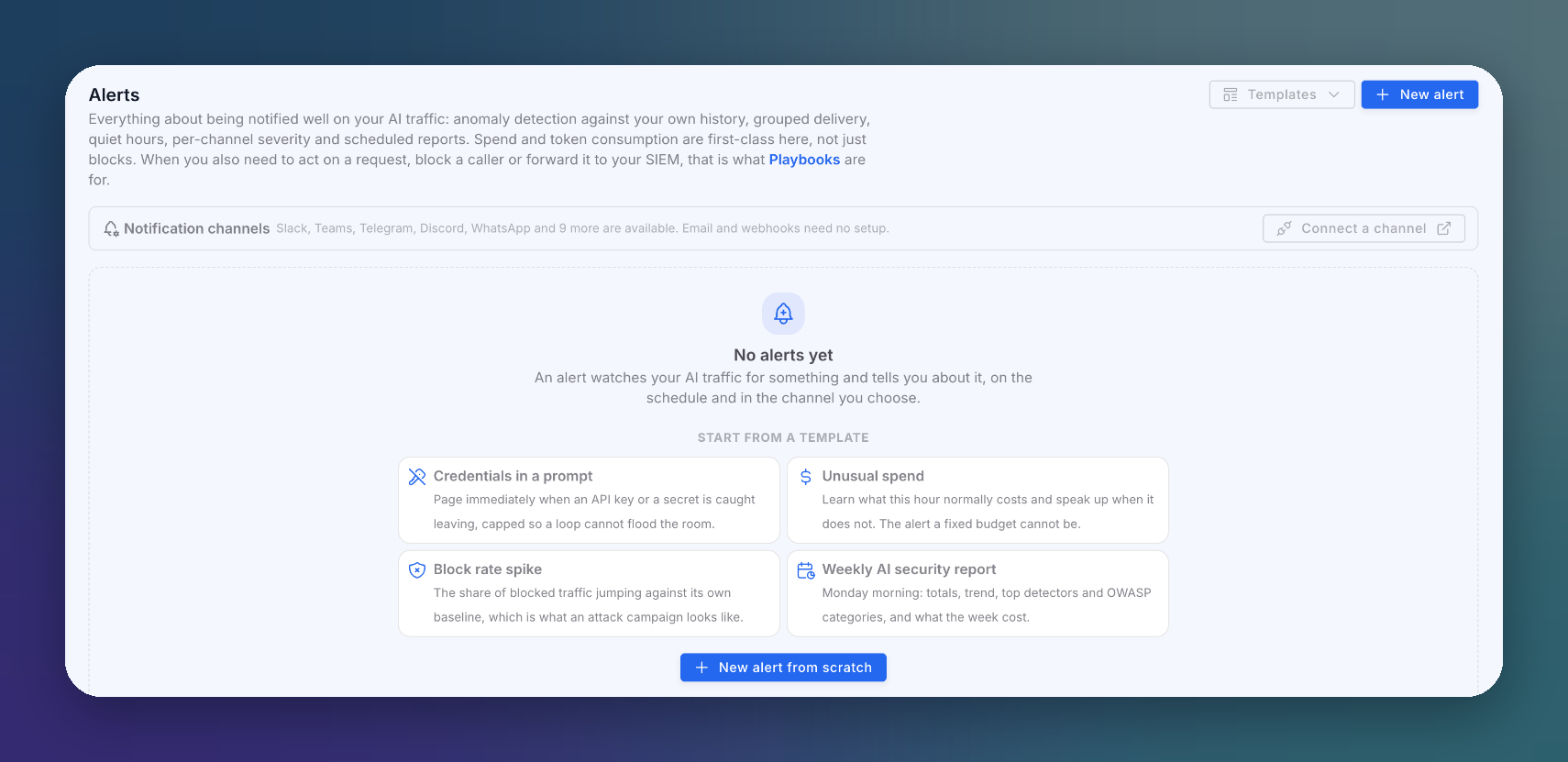
An alert watches your AI traffic for something and tells you about it, on the schedule and in the channel you choose. Alerts cover detections, block rates, spend and token consumption, with anomaly detection against your own history, grouped delivery, quiet hours and scheduled reports.
Alerts only tell people. To act on a request, block a caller or forward it to your SIEM, use Playbooks.
Alerts Screen
Open AI runtime → Alerts.
 Click to expand
Notification Channels
Email and webhooks need no setup. Slack, Microsoft Teams, Telegram, Discord, WhatsApp and more are available once you connect them in your organization's Integrations: click Connect a channel.
Templates
| Template | Watches |
|---|---|
| Credentials in a prompt | Pages immediately when an API key or a secret is caught leaving, capped so a loop cannot flood the channel |
| Unusual spend | Learns what each hour normally costs and speaks up when it does not |
| Block rate spike | The share of blocked traffic jumping against its own baseline, which is what an attack campaign looks like |
| Weekly AI security report | Monday morning: totals, trend, top detectors and OWASP categories, and what the week cost |
Or click New alert to start from scratch.
Create an Alert
An alert is built in three steps.
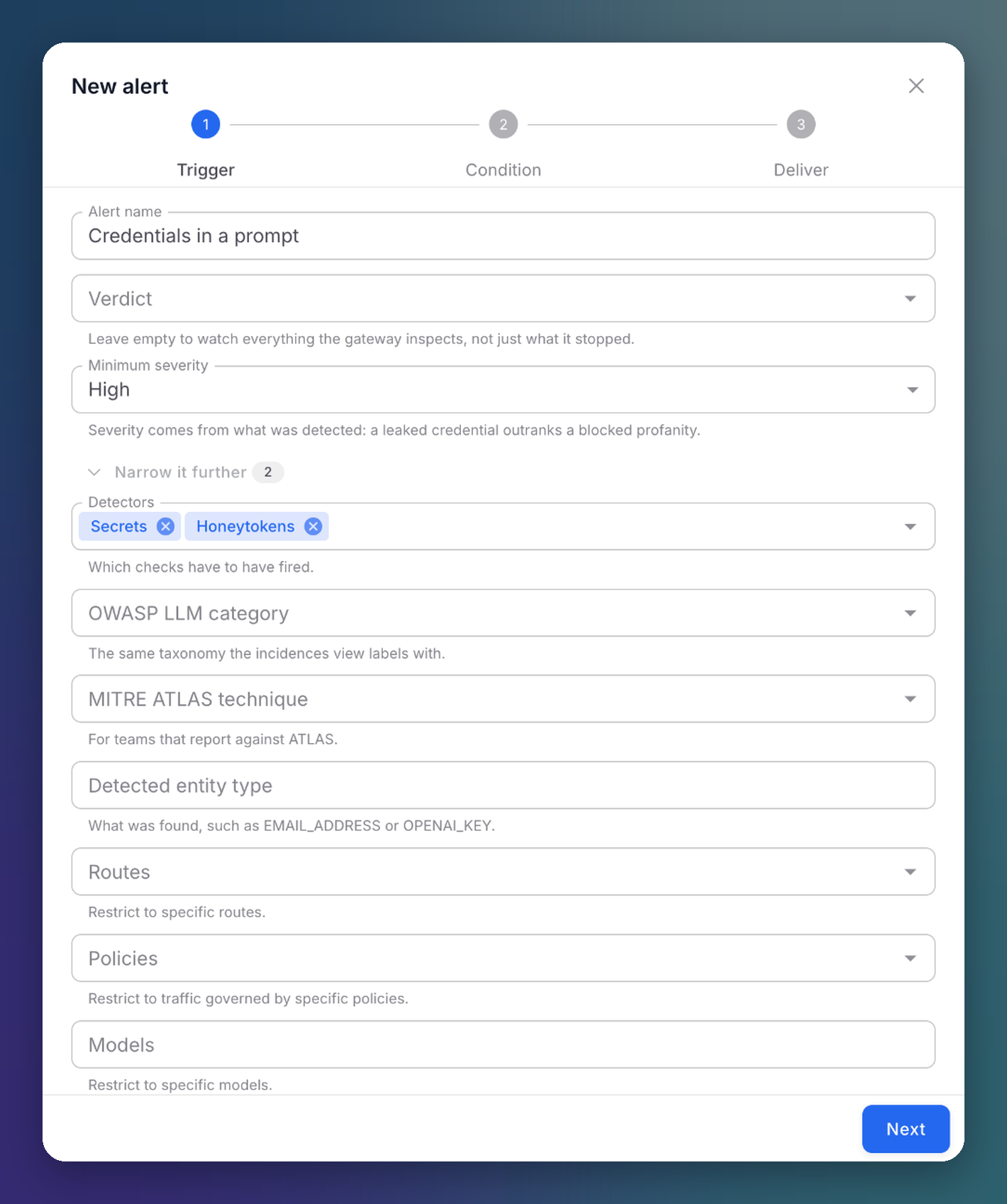
1. Trigger
What the alert watches.
 Click to expand
| Field | Description |
|---|---|
| Alert name | A descriptive name |
| Verdict | Leave empty to watch everything the gateway inspects, not just what it stopped |
| Minimum severity | Severity comes from what was detected: a leaked credential outranks a blocked profanity |
| Narrow it further | Detectors, OWASP LLM category, MITRE ATLAS technique, detected entity type (such as EMAIL_ADDRESS or OPENAI_KEY), routes, policies and models |
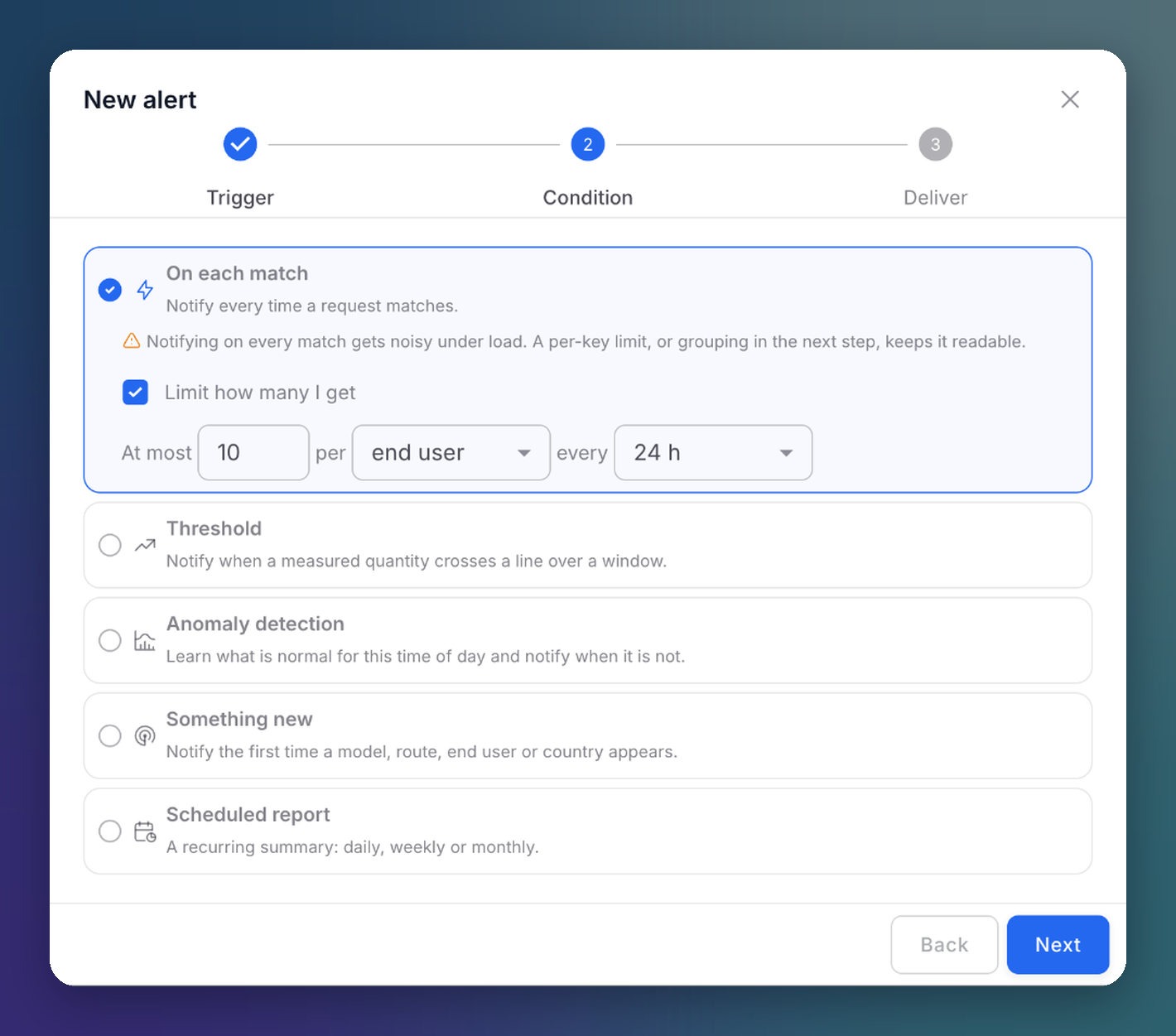
2. Condition
When to notify.
 Click to expand
| Condition | Notifies |
|---|---|
| On each match | Every time a request matches. Use Limit how many I get (for example, at most 10 per end user every 24 hours) to keep it readable under load |
| Threshold | When a measured quantity crosses a line over a window |
| Anomaly detection | When the value is unusual for this time of day, learned from your own history |
| Something new | The first time a new model, route, end user or country appears |
| Scheduled report | A recurring summary: daily, weekly or monthly. It can be skipped when the period had no activity |
3. Deliver
Where and how the notification goes.
| Setting | Description |
|---|---|
| Destinations | One or more channels: email recipients, a Slack channel, a Teams team, a webhook... Each destination can have its own minimum severity: critical only, high and above, or medium and above |
| Pacing | Group matches into one message every N minutes, and do not repeat the same alert more than once per period |
| Quiet hours | Do not notify during a fixed window, such as nights or weekends |
Red team traffic never pages anyone
Alerts fire on real traffic only. Rehearsed attacks from red team runs are excluded.
Next Steps
Playbooks
Act automatically on incidence patterns
Incidences
Follow up on what an alert reported